Inspector windows are small windows that allow you to change settings for whatever happens to be the currently selected object. They are the ones that have a thinner title bar, they always hover above other windows and they disappear when you change to a different application.
In most applications they contain information and settings about whatever object is selected. As you select different things, the contents of the inspector window will change, so you can always go to the same place to change the properties of that object.
Now you don't want multiple inspectors popping up, containing settings for different objects, because they are designed to keep all the information and properties in one location, so you always know where to find it. However, you might want multiple inspectors that contain different sections of the settings. For example, you might want one inspector for text settings, and one for graphics settings.
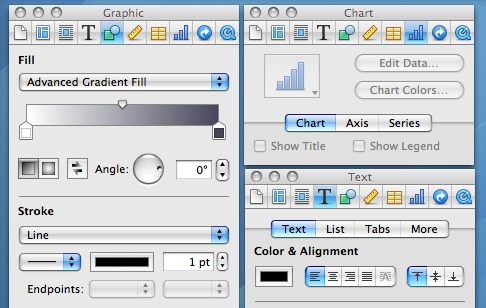
inspector windows
In most Apple applications, there is a single inspector with tabs along the top that allow you to change between different groups of settings. If you find yourself constantly jumping between different tabs while you work, there is a simple way to separate each tab out into its own inspector. Simply hold the Option key while clicking on a tab, and another inspector window will appear with the contents of that tab.
Using this, you can arrange the different inspectors around your screen for easier access. For example, in Pages you might want to keep separate Graphic, Text and Table inspectors always open.
adtoll
Monday, May 31, 2010
Watch videos before they have finished downloading
When you are downloading a video file to your computer using Safari, it is possible to start watching it before the download has finished. This is great for really long movies that take ages to download.
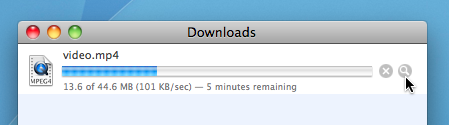
To do this just go to the downloads window in Safari (Command-Option-L) and find your video that's downloading. Click on the little magnifying glass icon to show the file in the Finder.

Downloads Window
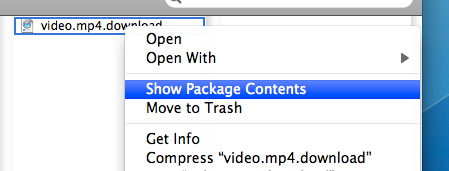
You will notice that the file has an extra extension of .download added to the end, and it doesn't open properly if you double-click on it. However, instead you can right-click on the file and choose "Show Package Contents". A new folder should open up, containing two files.

Show Package Contents
One will be called "info.plist" and the other will be the video you are downloading. Now you can just open it to watch the portion that has already downloaded. For some videos QuickTime will be unable to play them when they aren't completely downloaded. If you have problems, you can try using VLC instead.
To do this just go to the downloads window in Safari (Command-Option-L) and find your video that's downloading. Click on the little magnifying glass icon to show the file in the Finder.
Downloads Window
You will notice that the file has an extra extension of .download added to the end, and it doesn't open properly if you double-click on it. However, instead you can right-click on the file and choose "Show Package Contents". A new folder should open up, containing two files.
Show Package Contents
One will be called "info.plist" and the other will be the video you are downloading. Now you can just open it to watch the portion that has already downloaded. For some videos QuickTime will be unable to play them when they aren't completely downloaded. If you have problems, you can try using VLC instead.
Subscribe to:
Posts (Atom)